










.svg)
Single sign-on with Google Workspace
Learn how to setup single sign-on with Google Workspace.
Zefi supports Single Sign-On (SSO), allowing you to manage your team’s access through your identity provider (IdP). This means your team can access Zefi without needing separate passwords. When SSO is configured, users (team members) are automatically redirected to your IdP for authentication when they sign in to Zefi.
Your IdP verifies if they have a valid access to your Zefi accounts or organization, and generates a SAML assertion used by Zefi to verify their identity. When your account requires SSO, you must update team permissions through your Identity Provider (IdP) for security.
1. Configure Google Workspace
- Open and log in to the Google workspace admin portal.
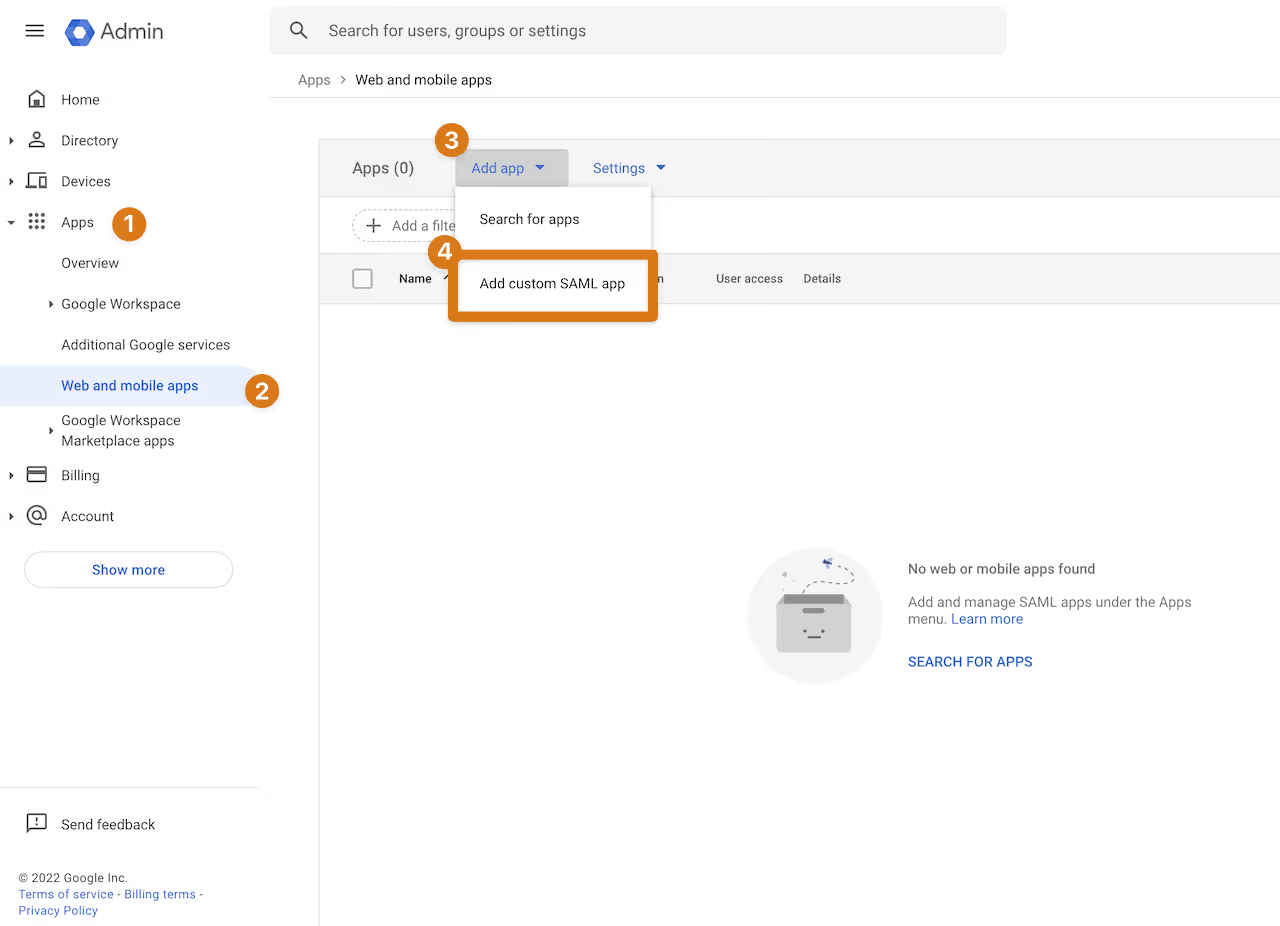
- In the left navigation pane, go to Apps -> Web and mobile apps.
- Click Add app -> Add custom SAML app
- Enter an App name (for example
Zefi SSO) and any other details you need, then click Continue. - Download the Metadata file and click Continue
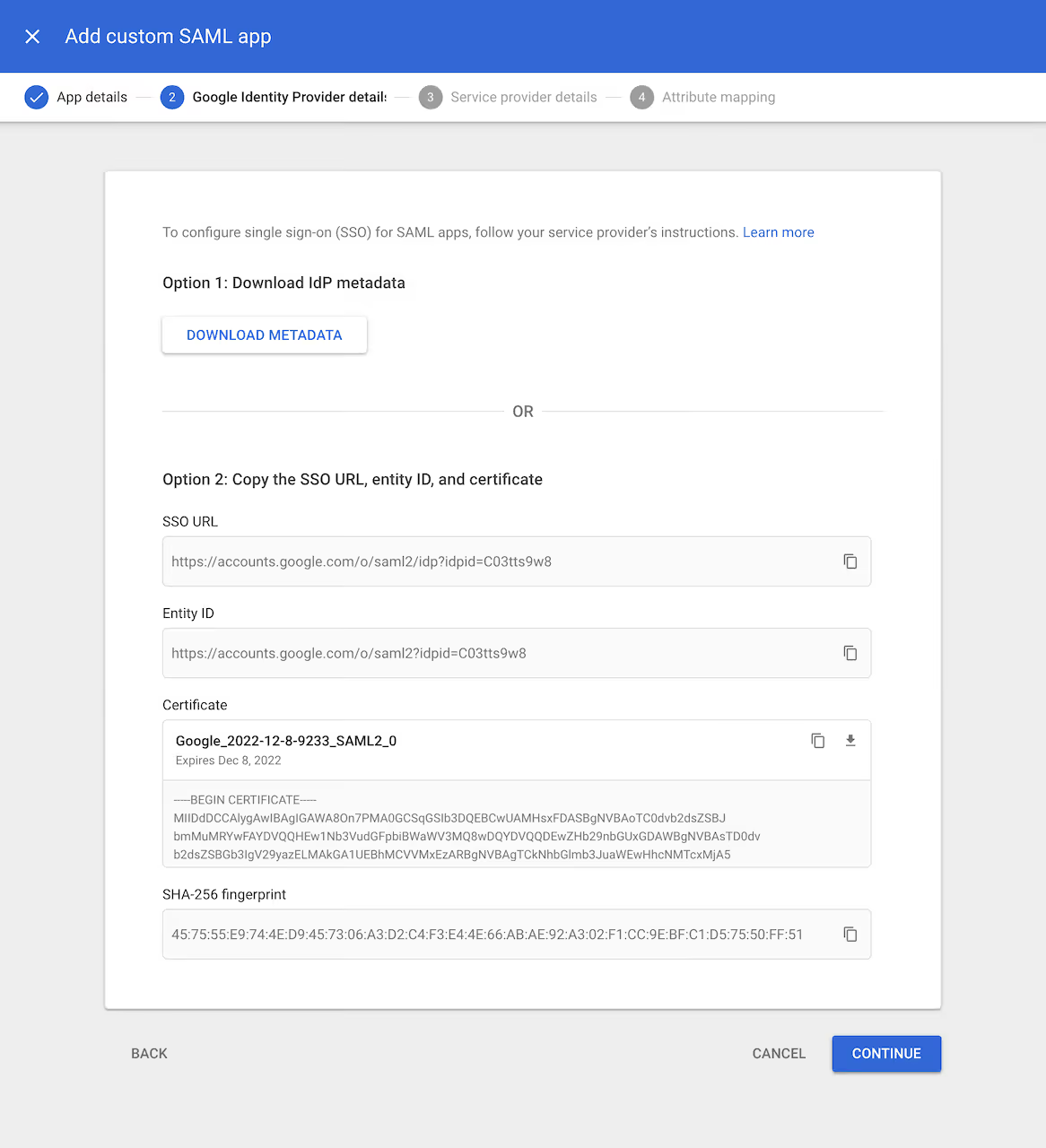
- On the Service Provider Details screen, configure the following:
- For ACS URL, add the value that you can find as
Single sign-on URL (ACS URL)in the Zefi platform - For Entity ID, add the value that you can find as
Audience URI (SP Entity ID)in the Zefi platform. - For Name ID Format, select
Email. - For Name ID, select
Basic Information and Primary Email.
- For ACS URL, add the value that you can find as
- Click Continue -> click Finish
2. Zefi app configuration
- Open and log in to the Google workspace admin portal.
- In the left navigation pane, go to Apps -> Web and mobile apps.
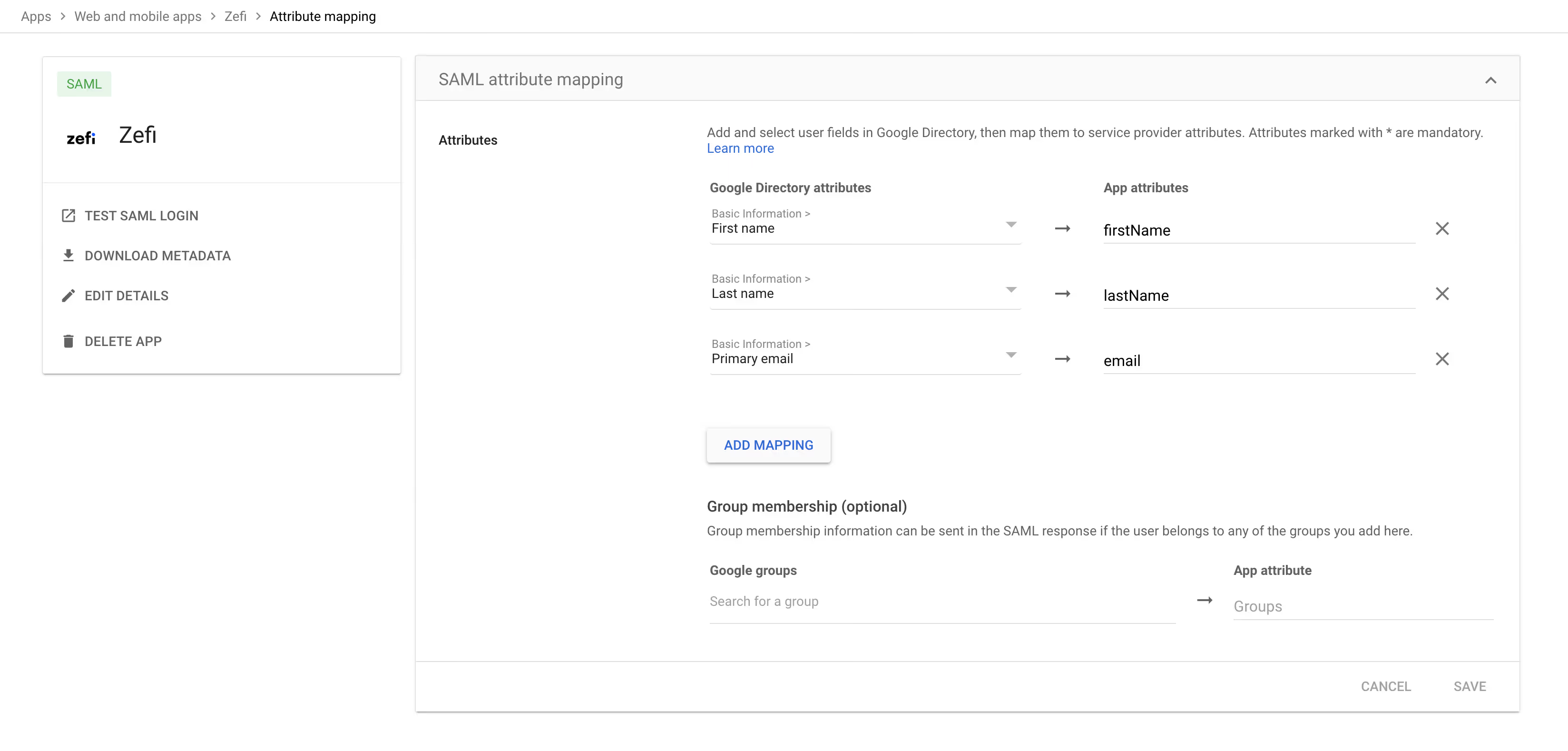
- Select your newly created Zefi app -> click on Configure SAML attribute mapping
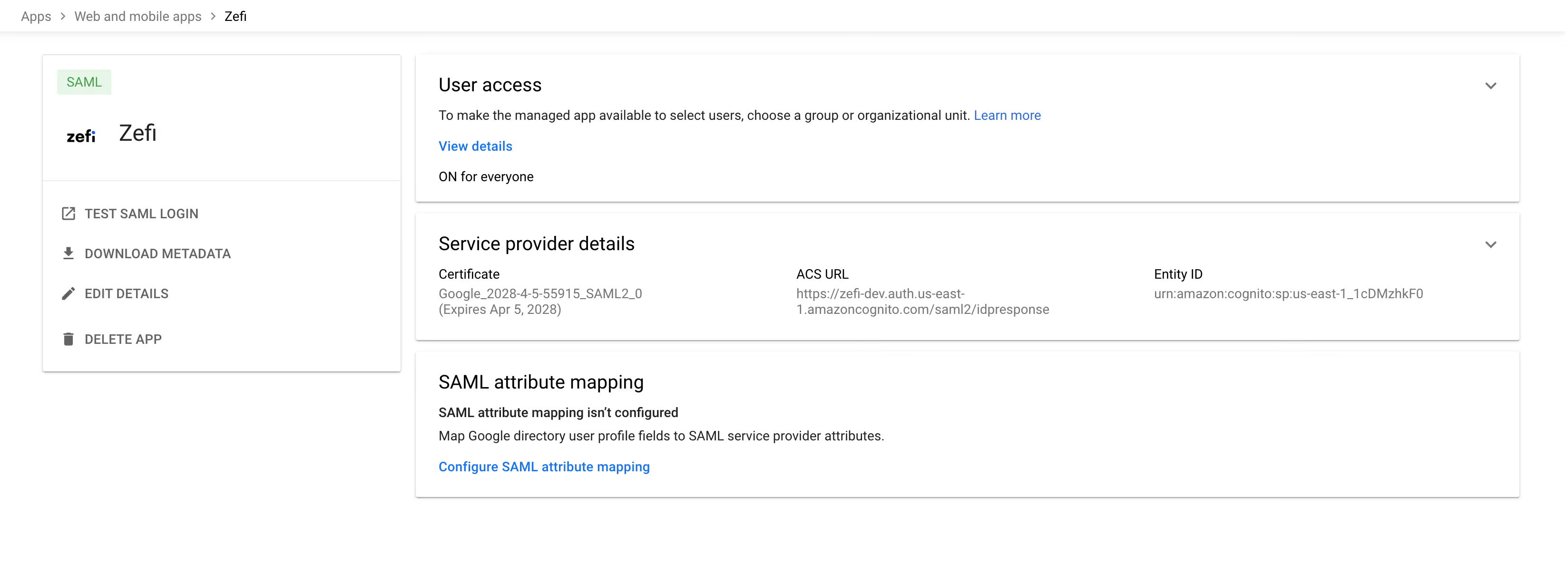
- Assign the following attributes:
- Basic Information > First name -> firstName
- Basic Information > Last name -> lastName
- Basic Information > Primary email -> email
- Click Save
3. Configure Zefi
- Locate the previously downloaded metadata file
- In the Zefi Platform, go to Settings -> Security
- Upload the Metadata File
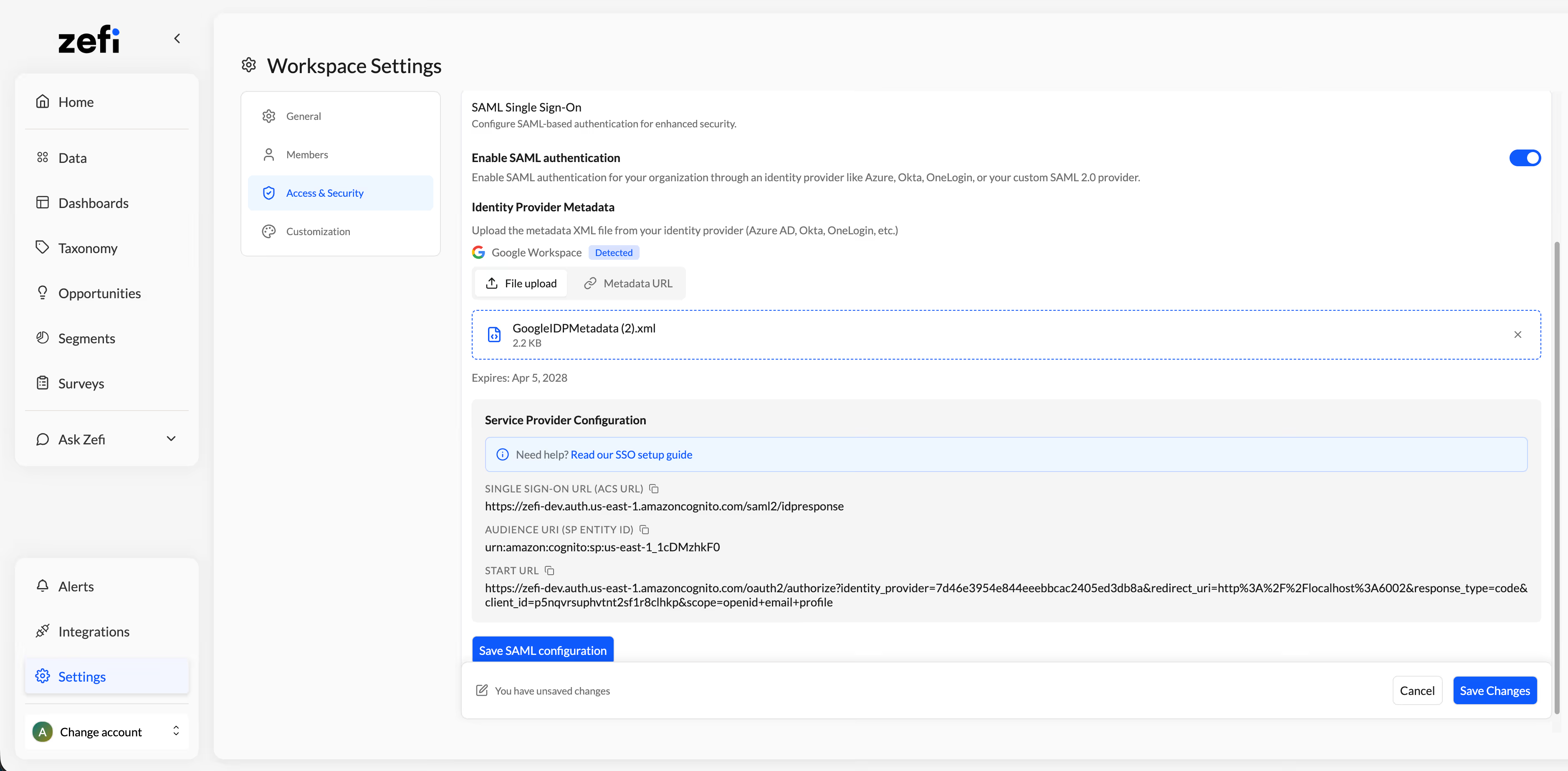
- Click on Save SAML Configuration
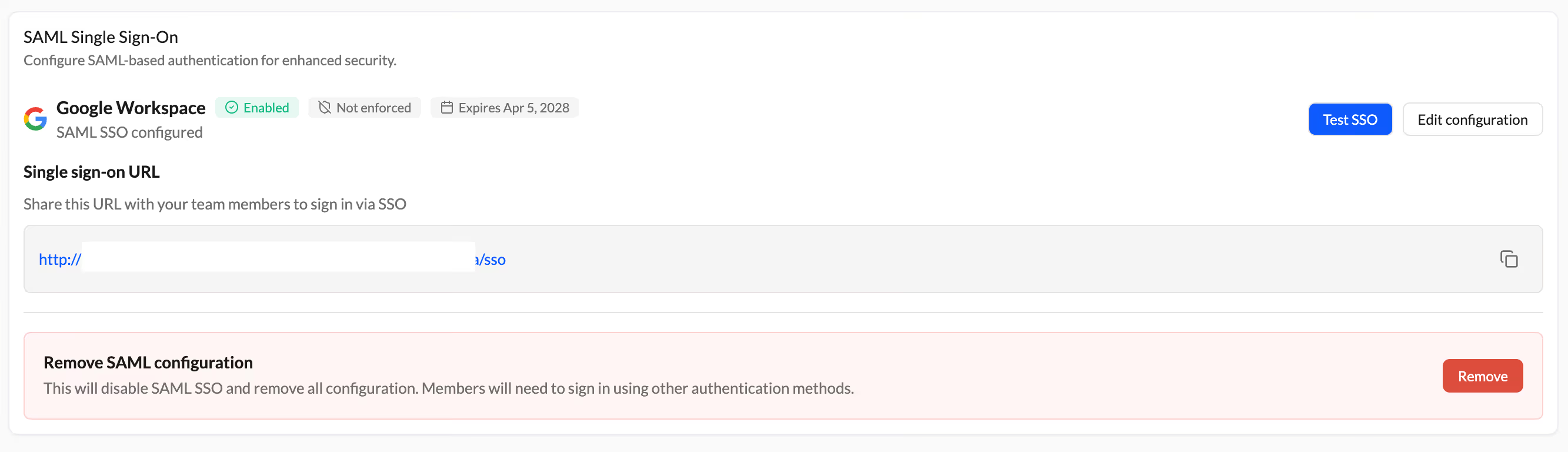
- Test that the SSO works as expected by clicking on Test SSO
- Share the Single sign-on URL with the rest of your team.
Supported features
Zefi supports the following SSO features:
.svg)
SSO configuration options:
Configure Zefi accounts to either mandate SSO for all users or allow sign-in using SSO or email and password.
Configure Zefi accounts to either mandate SSO for all users or allow sign-in using SSO or email and password.
Just-In-Time account creation:
Automatically create new Zefi accounts for users without existing access upon their first SSO sign-in.
Automatically create new Zefi accounts for users without existing access upon their first SSO sign-in.
Granular Dashboard roles:
Assign granular user roles through your IdP.
Assign granular user roles through your IdP.
IdP-initiated SSO:
Authenticate directly from an IdP’s website or browser extension.
Authenticate directly from an IdP’s website or browser extension.
System for Cross-domain Identity Management (SCIM):
SCIM is a protocol that an IdP can use to synchronize user identity lifecycle processes (for example, provisioning and deprovisioning access, and populating user details) with the service provider, such as Zefi.
SCIM is a protocol that an IdP can use to synchronize user identity lifecycle processes (for example, provisioning and deprovisioning access, and populating user details) with the service provider, such as Zefi.
Limitations
Zefi doesn’t support the following SSO features:

User Deletion in SAML:
When users aren’t managed through SCIM, Zefi doesn’t receive immediate notifications if user access is revoked in IdP. If users attempt to log in through SSO after their session expires, Zefi revokes their access. To remove access immediately, you can delete users from your team settings or enable SCIM user provisioning.
When users aren’t managed through SCIM, Zefi doesn’t receive immediate notifications if user access is revoked in IdP. If users attempt to log in through SSO after their session expires, Zefi revokes their access. To remove access immediately, you can delete users from your team settings or enable SCIM user provisioning.



.svg)


@Zefi.ai all rights reserved